
You’ve done everything right: published your blog posts, optimized the titles, maybe even built a few backlinks. But traffic still isn’t coming, and you can’t figure out why. Now, before you publish another post, it’s worth checking whether orphan pages are working against you.
Orphan pages are easy to miss. No internal links connect to them. They’re invisible to most visitors. And Google has little reason to rank them.
They are also one of the most overlooked SEO problems out there. But the fix is simpler than you might think.
In this post, I’ll show you how to track down every orphan page on your WordPress site and exactly how to fix it so that your SEO gets back on track.
⚡ TL;DR: Orphan pages are posts or pages on your site with no internal links pointing to them, making them nearly impossible for search engines to find. The easiest way to find and fix them is by using the Link Assistant feature in All in One SEO (AIOSEO).
What Are Orphan Pages?
An orphan page is any page on your website that no other page links to. There are no internal links pointing visitors or search engines in its direction.
It’s like a room in a building with no hallways leading to it. The room exists, but nobody can find it because there’s no way in.
How Do Orphan Pages Happen?
Orphan pages can show up on any WordPress blog or site, and they’re often created by accident.
Here are the most common ways an orphan page happens:
| Cause | What Happens |
|---|---|
| Pages never added to site structure | A page gets published but is never linked from the navigation menu, a category, or any other post. It exists in your database but remains completely isolated from the rest of your site. |
| Site migrations gone wrong | Moving your site to a new platform or restructuring your URLs can break internal links. This cuts pages off from the rest of your site – common when URLs change without proper 301 redirects. |
| Gradual link removal over time | As you update your navigation menu or redesign posts, links can disappear unintentionally. What was once well-connected can become orphaned over time. |
| Campaign landing pages left behind | Pages created for time-limited campaigns or promotions are often never integrated into your main site structure. When the campaign ends, they remain isolated. |
Some orphan pages are created on purpose, like landing pages for paid ads or pages you’re still testing. But even then, they need to be managed carefully, which I’ll cover later in this guide.
Why Orphan Pages Harm Your SEO
Orphan pages are bad for your WordPress SEO because search engines like Google rely on internal links to discover, crawl, and understand the value of your content.
When a page has no links pointing to it, Google has little reason to visit it, and even less reason to rank it.
Here’s what that can mean in practice:
- ❌ Pages may not get indexed — If Google’s crawler can’t find a page through internal links, it may never show up in search results at all.
- ❌ They struggle to rank, even for easy keywords — Internal links pass link equity (also known as “link juice” or SEO value), which helps pages compete in search. Without it, even well-written content can sit invisible.
- ❌ Orphan pages waste crawl budget — On larger sites, Google has a limited number of pages it will crawl per visit. Orphan pages eat into that budget without contributing anything back.
- ❌ They’re invisible to AI search tools — Tools like ChatGPT, Perplexity, and Google’s AI Overviews rely on indexed, well-connected content. Since orphan pages often aren’t indexed in the first place, these tools rarely surface them.
On top of all that, a site with many disconnected pages can signal poor structure to search engines, which can affect your rankings more broadly.
Now, let’s see how to find and fix orphaned pages on your WordPress site. Here’s everything I’ll cover in this guide:
- Step 1: Install and Activate the All In One SEO (AIOSEO) Plugin
- Step 2: Enable the Link Assistant Feature
- Step 3: Find Orphan Pages on Your WordPress Site
- Step 4: Choose Which Orphan Pages to Fix
- Step 5: Fix Priority Orphan Pages
- Other Ways to Find Orphan Pages
- Bonus Considerations for Orphan Page Management
- Your WordPress Orphan Page Audit Checklist
- FAQs About Finding and Fixing Orphan Pages in WordPress
- Next Steps to Improve Your WordPress SEO
Step 1: Install and Activate the All In One SEO (AIOSEO) Plugin
To find and fix orphan pages in WordPress, you’ll need the right tool for the job.
I recommend using All In One SEO (AIOSEO). It’s one of the most trusted SEO plugins available for WordPress, and it comes with a powerful Link Assistant feature that makes tracking down orphan pages straightforward.
At WPBeginner, we use AIOSEO to optimize titles, configure OpenGraph settings, create schema markup, and handle other critical SEO tasks. Plus, it’s consistently updated with new features and improvements.
For more information about the plugin, see our detailed AIOSEO review.
To start, you can visit the AIOSEO website to create an account. Just click ‘Get All in One SEO for WordPress,’ select a plan that includes the Link Assistant feature (Pro plan or above), and complete your purchase.
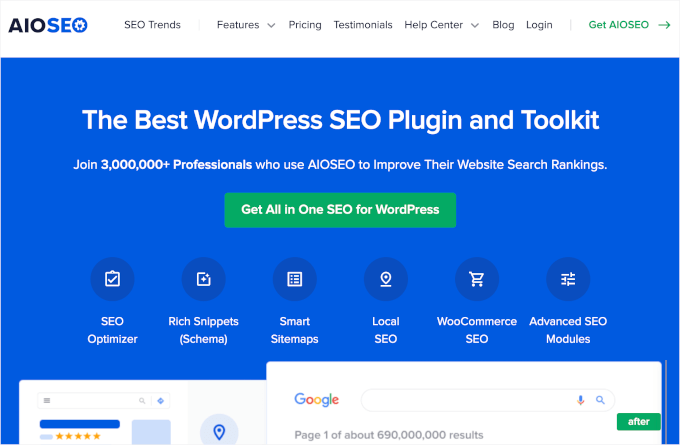
💡 Note: You’ll need at least AIOSEO’s Pro plan to access the Link Assistant. But you can install the free version of AIOSEO first to explore the plugin before upgrading.
Upon signup, you’ll receive access to your AIOSEO dashboard, where you can download your plugin zip file and copy your license key.
Now you can go ahead and install the All In One SEO plugin. Simply navigate to Plugins » Add New in your WordPress admin area.

On the next screen, click the ‘Upload Plugin’ button.
Then, click the ‘Choose File’ button to upload your AIOSEO Pro zip file from your computer.
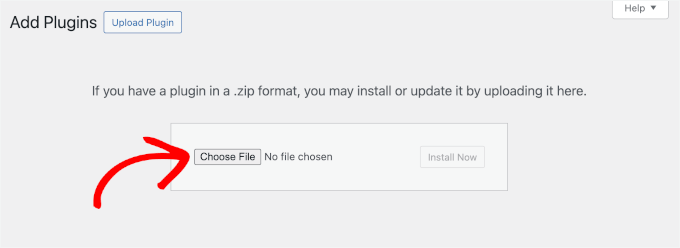
Once uploaded, click ‘Install Now,’ followed by ‘Activate.’ If you need detailed help, refer to our guide on how to install a WordPress plugin.
AIOSEO will then add a new menu to your WordPress dashboard. From here, navigate to AIOSEO » General Settings to verify your license key.
In the field, enter your AIOSEO Pro license key and click ‘Activate.’
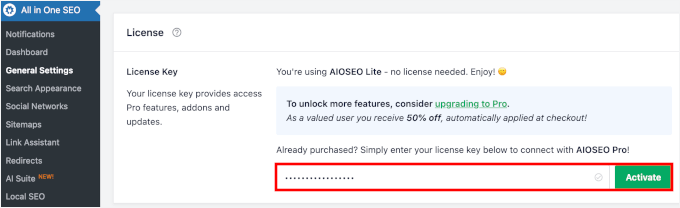
Now, you can access all of your SEO settings within the AIOSEO menu. You’ll be working inside this menu throughout the rest of this tutorial.
If you need help with this process, check out our guide on how to setup All in One SEO for WordPress correctly.
Step 2: Enable the Link Assistant Feature
Now that AIOSEO is installed and activated, you need to enable the Link Assistant feature. This is what will help you identify orphan pages on your site.
From your WordPress dashboard, head to AIOSEO » Link Assistant, and then you can click on the ‘Activate Link Assistant’ button if it isn’t already active.
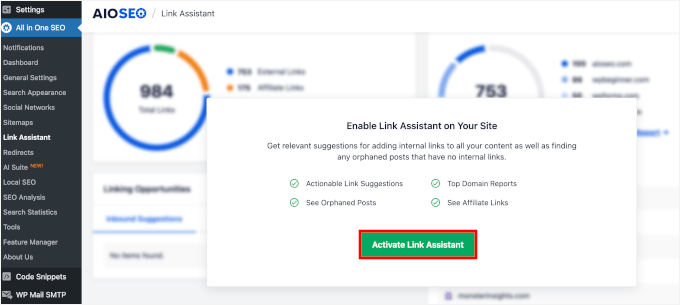
Once you’ve enabled it, you’ll see a popup modal prompting you to scan your content.
Go ahead and click the ‘Scan Now’ button.
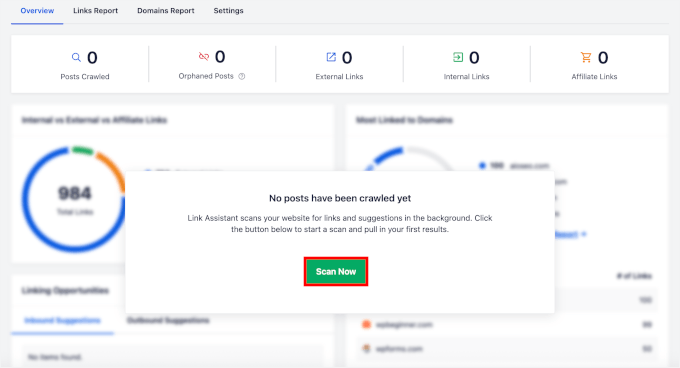
AIOSEO will then begin analyzing your site’s internal link structure in the background. This process scans your entire site to build a map of how your pages are linked together.
💡 Pro Tip: If this is your first time activating Link Assistant, give it a few minutes to finish scanning your WordPress site before moving on to the next step. Larger sites may take a bit longer to process, and you’ll see a progress indicator showing the scan status.
Step 3: Find Orphan Pages on Your WordPress Site
Now that Link Assistant is active, it’s time to see which pages on your site are orphaned.
From your WordPress dashboard, navigate to AIOSEO » Link Assistant and click on the ‘Orphaned Posts’ tab.
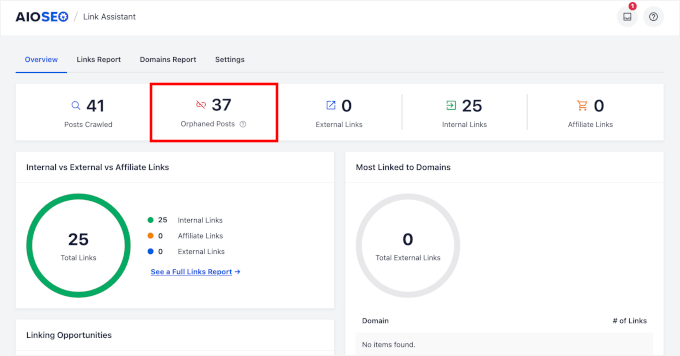
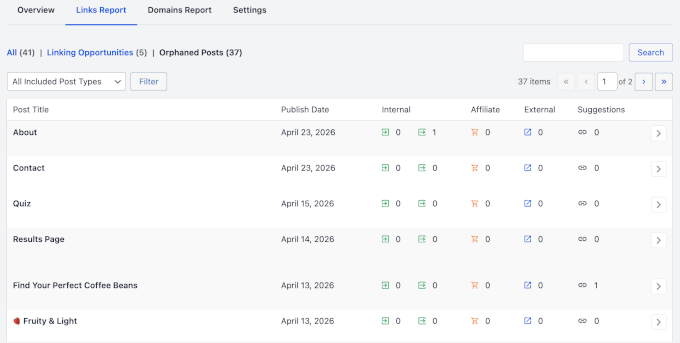
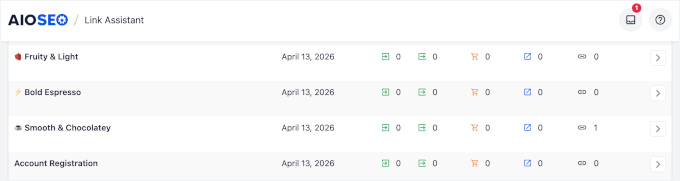
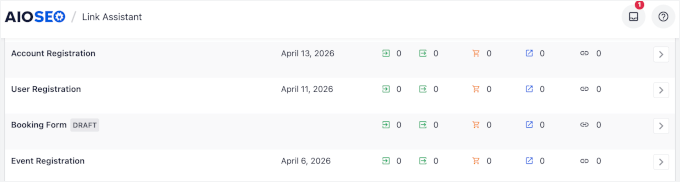
This will show you a full list of every page and post on your site that has no internal links pointing to it:
- Post Title — The name of the orphaned page or post. You can click on it to open that content directly.
- Publish Date — When the page was first published. This can help you spot old content that may have been forgotten over time.
- Internal Links — The number of internal links currently pointing to this page. For orphan pages, this will show zero.
- Affiliate Links — The number of affiliate links on the page itself. This helps you see if the page contains monetized content worth saving and reconnecting.
- External Links — The number of external (outbound) links on the page. Pages with relevant external links often contain valuable content worth keeping and fixing.
- Suggestions — Quick recommendations from AIOSEO on how to handle each orphaned page, whether that’s adding internal links, deleting it, or redirecting it elsewhere.
Here’s what it looks like in the panel:
Step 4: Choose Which Orphan Pages to Fix
Before you start adding links everywhere, take a moment to think critically about your orphan page list. If you’re looking at a long list, don’t panic.
Not every page needs to be fixed, and treating them all the same way can actually do more harm than good.
Your goal is to identify which pages are genuinely worth reconnecting to your site, and which ones are better off being deleted or redirected.
I recommend starting by focusing on pages that you know are valuable, like product pages, popular blog posts, or content you’ve actively promoted. Those are the ones most likely to benefit from being reconnected to your site structure.
🧑💻 Pro Tip: It helps to keep a simple spreadsheet as you work through the list. Note each page, its content type, and whether it seems worth fixing, redirecting, or removing. This makes the next step much easier to manage.
Prioritize Pages with Backlinks
If another website is already linking to one of your orphaned pages, then that page is passing link equity to your site. Reconnecting it internally means that value can flow through to the rest of your content.
You can check for backlinks using Google Search Console or a tool like Semrush.
In Google Search Console’s ‘Top linking sites’ report, for example, you’ll find all third-party websites linking to you. You can expand the report by clicking ‘More,’ then clicking any domain to see which of your pages they’ve linked to and the exact URLs involved.
Any orphaned page with existing backlinks should move to the top of your fix list.
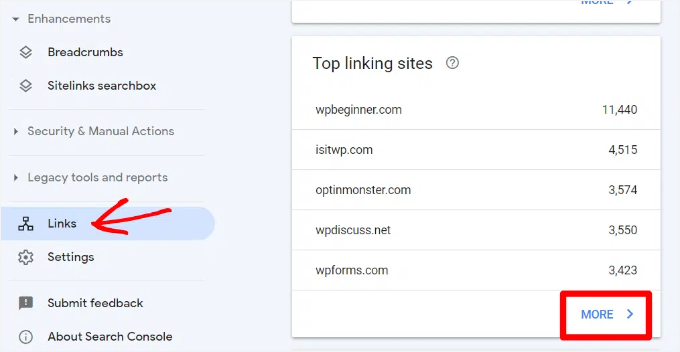
💡 Note: Keep in mind that if you just connected your site to Google Search Console for the first time, it may take a few days for your link data to populate. You can check out our guide on how to add your WordPress site to Google Search Console.
Check for Search Volume or Existing Rankings
Some orphan pages may already be getting a trickle of traffic from search engines, even without internal links. That’s a strong sign the content has potential.
To do this, you can use the ‘Performance’ report in Google Search Console to see if any of your orphaned pages are showing up in search results.
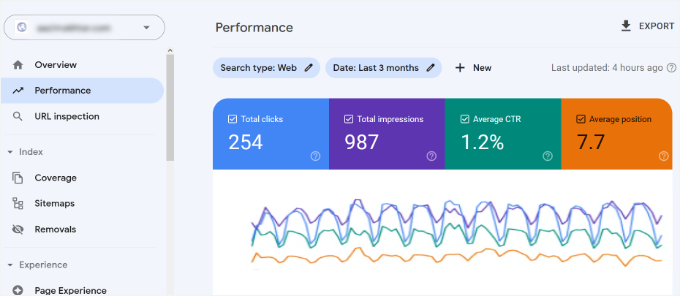
For more Google Search Console tips, see our guide on how to use Google Search Console to grow website traffic.
Check On-Site Traffic with MonsterInsights
Google Search Console shows you how a page performs in search, but not how visitors behave once they land on your site. For that, I recommend using MonsterInsights.
It brings your Google Analytics data right into the WordPress dashboard, so you can see which pages still pull traffic without opening GA4.
MonsterInsights won’t find orphan pages for you, because Link Assistant already does that. What it helps with is deciding which orphans are worth your time.
Head to Insights » Reports to see which pages are actually
getting visits, then cross-reference that against the orphan list from Link
Assistant.
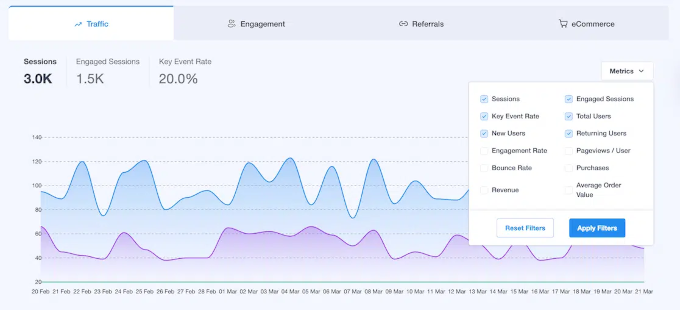
An orphan page that still pulls steady traffic despite having zero internal
links is a strong save, so reconnect it first. One that has barely registered
a visitor in months is a better candidate for redirecting or removing, which
I cover in the Bonus section below.
Consider Revenue Potential
Not all pages are created equal when it comes to your bottom line. Product pages, service pages, and high-converting content should be prioritized over general blog posts or informational pages.
If a page directly supports your business goals, it deserves to be well-connected within your site structure.
Flag Duplicates and Thin Content
As you review your list, you’ll likely come across pages that are very short, outdated, or nearly identical to other content on your site. These pages probably don’t need internal links added to them.
Instead, make a note of them. The Bonus section at the end of this guide covers exactly how to handle thin and duplicate content the right way.
Step 5: Fix Priority Orphan Pages
Now comes the part where you actually reconnect your orphaned pages to the rest of your WordPress site. AIOSEO’s Link Assistant makes this process much simpler than doing it manually, because it suggests relevant internal links for you automatically.
From the ‘Orphaned Posts’ tab, find a page you want to fix. You can either click directly on the post title or click the arrow icon next to it to open suggestions for that page.
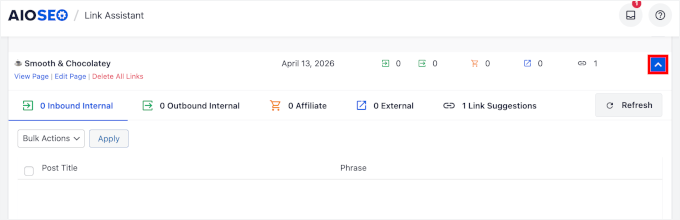
AIOSEO will show you a list of other posts and pages on your site that would be a natural fit for linking to your orphaned page. These suggestions are based on content relevance, so you’re adding ones that actually make sense for your readers.
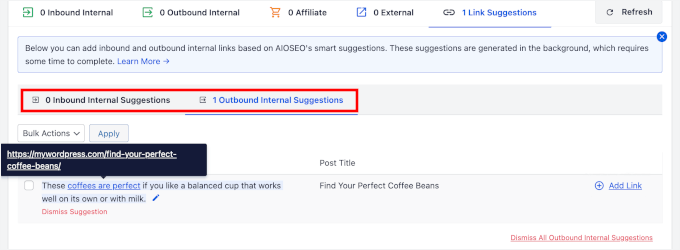
If you get internal linking suggestions, you’ll see two types of suggestions:
- Outbound suggestions — Pages your orphaned content should link to. These help establish context and keep readers engaged on your site.
- Inbound suggestions — Pages on your site that should link to your orphaned page. These help bring traffic and authority into the orphaned content.
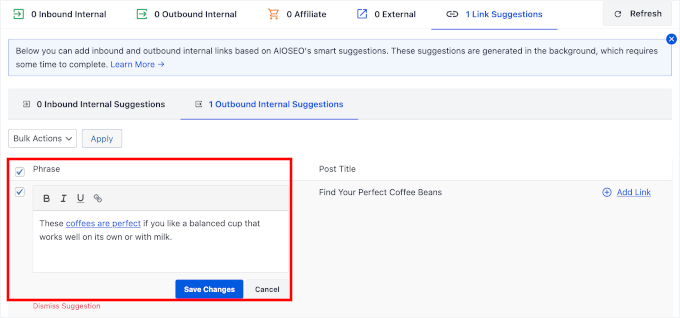
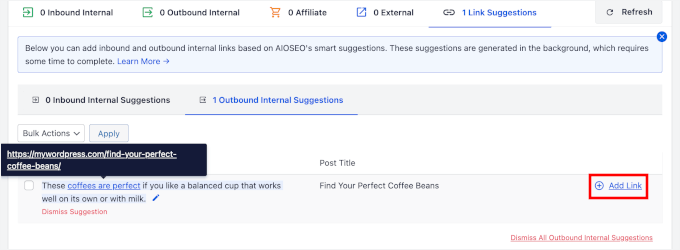
From here, you can hover over the anchor text, which is the clickable words that will appear as the link in your content, to see where it links to.
Before finalizing a link, it’s worth checking the anchor text.
AIOSEO gives you the option to edit it by clicking the pencil icon next to the suggestion.
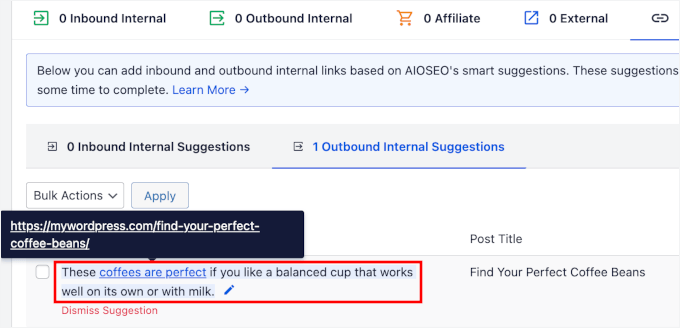
I recommend using anchor text that reads naturally in context.
Descriptive, relevant anchor text also helps search engines understand what the linked page is about, which can give it a small but helpful SEO boost.
Click ‘Save Changes’ to update your anchor text.
Once you’ve reviewed the suggestions, simply click the ‘Add Link’ button next to any suggestion you want to use.
AIOSEO will add the internal link to that post automatically, without you needing to open the content editor yourself. This is a real time-saver, especially if you have several orphaned pages to work through at once.
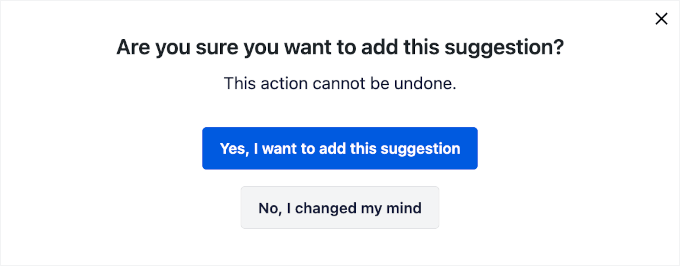
A popup will appear asking you to confirm the changes.
Click ‘Yes, I want to add this suggestion,’ and AIOSEO will immediately apply the internal links to your orphaned pages.
From here, you can go ahead and repeat the process for all of your priority orphaned pages.
For your highest-value orphans, it’s also worth going one step further and adding them to your site structure directly.
Link Assistant adds links from within the body of other posts. But a
cornerstone page, a key product page, or an important landing page often
deserves a more permanent spot.
You can add these pages to your main navigation menu, or assign posts to a relevant category. A menu link points to the page from every page on your site, which makes it easy for readers and search engines to reach from anywhere.
If you use affiliate links added via plugins like ThirstyAffiliates, then you’ll see affiliate suggestions in the report as well.
Similarly, external suggestions appear for outbound links you could add. External links point readers to relevant content on other websites, which helps establish authority and provides context for your content.
Adding these works the same way as internal links. AIOSEO suggests relevant pages, and you approve them with one click.
In your process, you might also see multiple internal link suggestions for a single page. Be careful because more internal links aren’t always better.
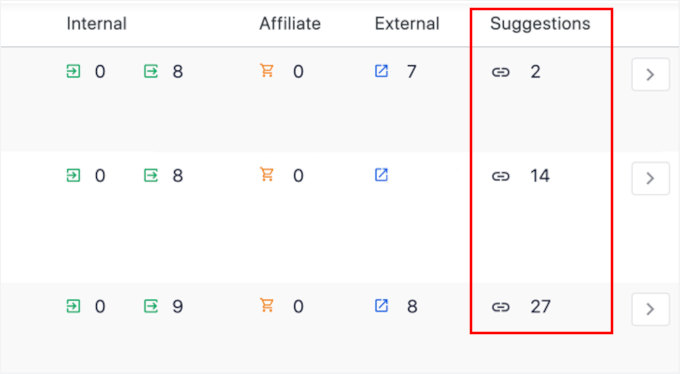
Adding too many links to a single page can dilute link equity and look unnatural to search engines. Aim for links that are genuinely relevant to the reader and add real value to the content.
For more guidance, see our ultimate guide on internal linking for SEO.
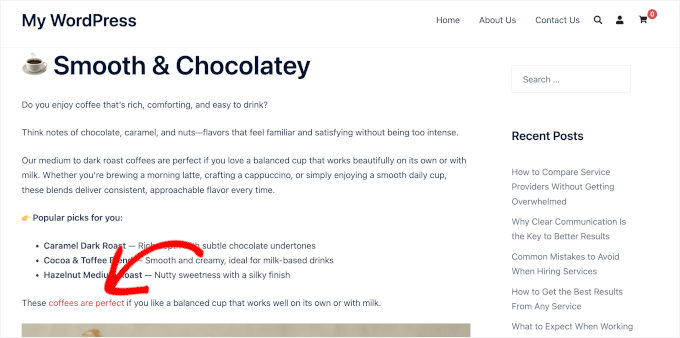
When you’re done, visit the actual blog post or page to see the new internal links in action.
Other Ways to Find Orphan Pages
AIOSEO’s Link Assistant is the easiest way to find orphan pages, and it’s the method I recommend.
But if you don’t use AIOSEO, or you just want a second tool to cross-check your list, then you have a few alternatives.
- Screaming Frog SEO Spider — A desktop crawler that’s free for up to 500 URLs. Connect it to Google Search Console or your XML sitemap, and its Orphan URLs report flags pages those sources know about but the crawl never reached through an internal link.
- Semrush Site Audit — It crawls your whole site and surfaces orphan pages by comparing the crawl against your sitemap. It’s a paid tool, but useful if you also want keyword research or backlink tracking.
- A manual Search Console check — Compare the URLs in your XML sitemap against the pages a crawl can actually reach. Anything in the sitemap that the crawl misses is likely an orphan. Our Google Search Console guide walks through the reports you’ll need.
These methods only find orphan pages, so you’ll still fix them by adding internal links the way we covered above.
If you want a full health check while you’re at it, then run our free SEO audit tool to catch other issues alongside your orphan pages.
Bonus Considerations for Orphan Page Management
Fixing orphan pages by adding internal links is the right move for most content. But not all orphaned pages should be handled the same way.
Here’s how to deal with the ones that need a different approach:
- Thin or duplicate orphan pages — Don’t link to weak content. Instead, remove these pages by setting them to return a 404 or 410 status, which tells search engines to drop them from the index. Before deleting pages, though, create a complete backup, just in case you need to reverse your changes.
- Deleted pages — If deleted pages still have backlinks pointing to them, set up a 301 redirect to a relevant page instead of letting them return a 404. This preserves the link equity you’ve built up. Since you’re already running AIOSEO Pro for Link Assistant, you can set these redirects up with its built-in Redirection Manager, without adding a separate plugin.
- Intentional orphan pages — Landing pages and testing pages shouldn’t have internal links pointing to them. If they’re indexed by search engines, add a noindex tag so they don’t appear in search results.
Your WordPress Orphan Page Audit Checklist
Orphan pages aren’t a one-time fix. New ones show up every time you
publish, redesign, or migrate your site, so it helps to run a quick audit on a
schedule.
Here’s the checklist I follow:
- Scan with Link Assistant — Open AIOSEO » Link Assistant and check the ‘Orphaned Posts’ tab for any pages with zero internal links.
- Cross-check the data — Confirm your priorities in Google Search Console (backlinks and search performance) and MonsterInsights or Google Analytics (on-site traffic).
- Sort each orphan — Decide whether to reconnect, redirect,
noindex, or delete it. - Reconnect the keepers — Add relevant internal links with
Link Assistant, and add your most important pages to the navigation menu. - Handle the rest — Redirect pages that have backlinks, add
a noindex tag to intentional orphans, and remove thin or duplicate
content. - Re-scan on a schedule — Run this audit every few months,
and always after a redesign or site migration.
Run through this list a few times a year, and orphan pages will stop draining your rankings and start working for your SEO again.
FAQs About Finding and Fixing Orphan Pages in WordPress
Still have questions about managing orphan pages? Here are a few of the most common questions our readers ask.
Why are orphan pages bad for SEO?
Orphan pages are bad for SEO because search engines discover content by following internal links, and pages with no links pointing to them are much harder to find, crawl, and rank.
Without internal links, these pages receive no link equity from the rest of your site. This makes it difficult for them to compete in search results even if the content itself is well-written.
How often should I check for orphan pages?
You should check for orphan pages at least once every few months, or any time you make significant changes to your site structure, navigation, or content.
Sites that publish frequently or have recently gone through a redesign or migration should check more often, since these are the situations where orphan pages are most likely to appear.
Can I fix orphan pages without a plugin?
Yes, you can fix orphan pages without a plugin by manually reviewing your content and adding internal links through the WordPress editor, but this approach is time-consuming and easy to get wrong.
A tool like AIOSEO‘s Link Assistant speeds up the process significantly by automatically identifying orphaned content and suggesting relevant internal links for you.
Are orphan pages the same as dead-end pages?
No, they’re opposite problems. An orphan page has no internal links pointing to it, so visitors and search engines have no way in. A dead-end page is the reverse: other pages link to it, so people can reach it, but it has no internal links pointing out to anything else.
Both are internal linking problems, and both are worth fixing. On a dead-end page, the reader has nowhere to go next, and the link equity that flows in has nowhere to flow onward. Adding a few relevant outbound links solves it the same way reconnecting an orphan page does.
Do I need to fix every orphan page?
No, you don’t need to fix every orphan page on your site. Thin content, duplicate pages, and intentional orphans like PPC landing pages are better handled through removal, redirection, or noindexing rather than adding internal links to them.
Instead, focus your efforts on pages that have real traffic potential, existing backlinks, or strong revenue value.
What’s a good ratio of internal links per page?
There’s no single perfect number, but a good general rule is to include internal links wherever they genuinely help the reader find related content.
Most SEO experts suggest aiming for a handful of relevant internal links per post rather than stuffing in as many as possible. Too many links can dilute link equity and feel unnatural to readers.
Will orphan pages affect my AI search visibility?
Yes, orphan pages can affect your visibility in AI-powered search tools like ChatGPT, Perplexity, and Google’s AI Overviews.
These tools rely on well-indexed, well-connected content to surface accurate information, and pages that are cut off from your site structure often aren’t indexed in the first place, so these tools can’t surface them. Fixing orphan pages helps ensure your content is discoverable across both traditional and AI-driven search.
Next Steps to Improve Your WordPress SEO
You’ve now found your orphan pages with AIOSEO’s Link Assistant, reconnected the valuable ones with internal links, and redirected or removed the rest.
To keep building on that, explore our other SEO guides:
- How to Perform an SEO Audit and Generate Free SEO Report
- How to Find and Fix Broken Links in WordPress
- How to Track SEO Changes on Your WordPress Site (Easily)
- 13-Point WordPress SEO Checklist for Beginners
- The Ultimate WordPress Local SEO Guide to Boost Rankings
If you liked this article, then please subscribe to our YouTube Channel for WordPress video tutorials. You can also find us on Twitter and Facebook.
The post How to Find and Fix Orphan Pages That Are Killing Your WordPress SEO first appeared on WPBeginner.